back to videos
Knowledge Base
1 min 14 sec
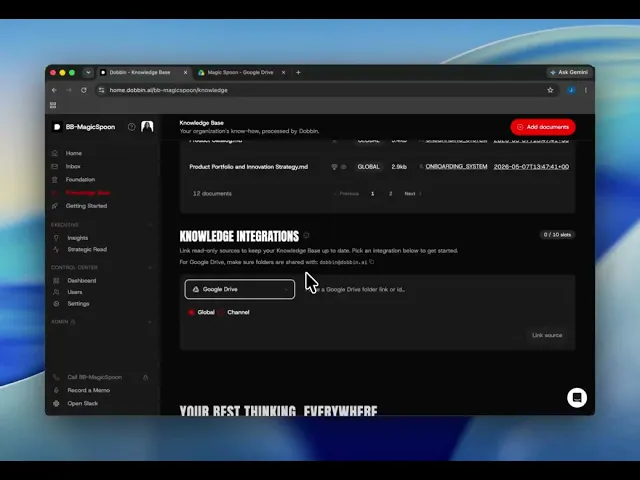
Learn how to sync your Google Drive folders directly to Dobbin.
This video shows you the exact steps to share a folder with Dobbin and link it to your workspace. Connecting Google Drive allows Dobbin to read your live documents and keep its context up to date automatically.
What we cover:
→ Where to find the Google Drive integration in Dobbin HQ.
→ How to share your Google Drive folder with Dobbin's system email.
→ How to link the folder back to your workspace.
→ How to control which Slack channels can access the synced files.
Transcript:
To enrich Dobbin's knowledge base, you can connect it to your everyday tools, whether that's Google Drive, Assauna, or whatever you use on your day to day.
Today we're going to focus on the Google Drive integration.
To navigate there, you'll want to first go into your knowledge base and scroll all the way down to your knowledge integrations.
In this dropdown menu, you can select Google Drive.
Once you know which folder you want to share with Dobbin, you'll want to make sure to first invite Dobbin to see the folder directly within your Google Drive.
So I'm going to come and copy this email, and go into my folder, and invite Dobbin to join.
Once that is done, I'm going to get the link from this folder and come back into my knowledge base, paste the link here, and then I can link the source.
Now, one thing to note is, like any resource in knowledge base, you can either select to upload it to your global channels or to specific channels.
So in this case, we're going to select global channels and we're going to link the source.
And that's it. My Dobbin can now access all the documents that I will drop in this specific folder.